 Expense Khata
Month-to-month comparison
See what changed since last month
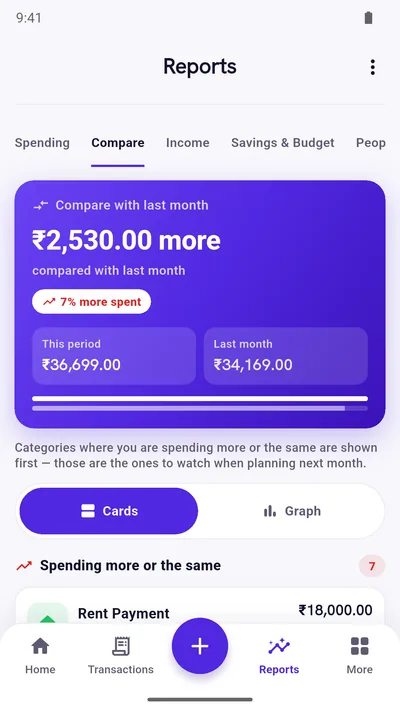
Expense Khata puts this month next to last month for every category you spend on. The categories that went up come first, so you know where to look before you plan the next month.
- Category by category
- Cards or a bar graph
- Free on Google Play
What Compare shows
One month next to the other, in plain numbers
Open Reports and tap Compare. Everything below uses the spending you have already recorded.
One summary at the top
A single card says how much more or less you spent than last month, with both totals side by side and the change in percent.
Rising categories first
Categories where you are spending more, or the same, are listed first. Those are the ones to watch when you plan next month.
New and stopped spending
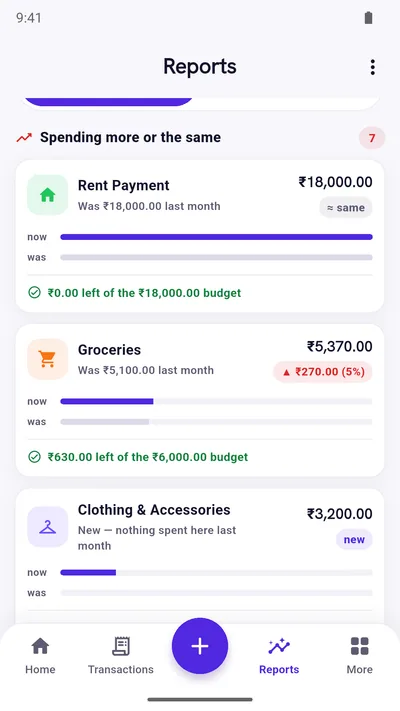
A category you did not use last month is marked “new”. One you have stopped using is marked “stopped”, with what it used to cost.
Your budget in the same place
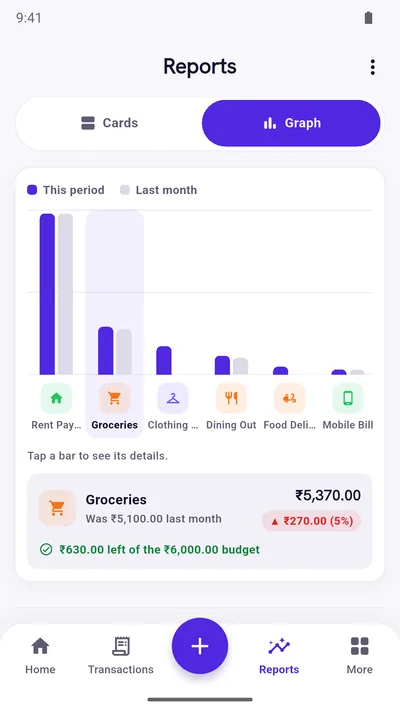
When you look at a single month, a category with a budget also shows how much is left, or how far over the limit you are.
Cards or a bar graph
Read one card per category, or switch to a bar graph that puts this month and last month side by side. Tap a bar to see its details.
Any period you pick
Compare three months, a year or your own dates. The app compares them with the period of the same length just before.
Category by category
Each category, with its own icon and a clear change
Every category gets its own card, with the same icon and colour it has everywhere else in the app. Two bars show this month and last month on one scale, so a big change is easy to spot.
- The change is shown as an amount, and as a percentage when spending went up.
- Categories you spend less on are grouped at the end.
- Search and account or category filters apply to both months, so you compare like with like.
Use it once a month
A five-minute monthly check
- Open CompareAt the start of a month, go to Reports, choose last month as the period and tap Compare.
- Read the top groupLook at the categories under “Spending more or the same”. Ask whether each increase was planned.
- Change one thingPick one category to watch this month and give it a limit in the Budget Planner.
Want a full routine? Read the 15-minute monthly budget guide.
Questions
Good to know
What does Compare compare against?
The period just before the one you picked, of the same length: this month with last month, three months with the three months before, or a custom 14-day range with the 14 days before it.
Does Compare include income?
No. Compare looks at expenses only, so the totals match the “Money out” figure in Reports. Income and savings have their own tabs in Reports.
Can I compare one account or one category?
Yes. Search and the account, category and person filters in Reports apply to both periods.
Is Compare free?
Yes. Reports, including Compare, are part of the free app. Premium only removes ads and adds PIN lock, Google Drive backup and custom categories and tags.
Start with today’s spending.
Free on Google Play. No sign-up, and your records stay on your phone.
Android 7.0 or newer. Free with ads; Premium is an optional one-time purchase.